A README for review
A README or technical document that a colleague wants to review in Word with tracked changes.
Loading converter…
H1–H6 map to Word's built-in heading styles, so the heading hierarchy stays intact. Use #, ##, ### in order. Skipping levels gives a messy outline in Word.
Standard text becomes normal, editable Word paragraphs.
Carries over as expected.
Ordered and unordered lists become real Word lists. Very deeply nested ones may need a quick adjustment after export.
Standard tables become native Word tables; wide or complex ones are worth reviewing after conversion.
Become clickable hyperlinks in the document.
Carry over as regular document content.
Come through as readable monospace text. Exact syntax-highlighting styling doesn't survive the export. Use fenced blocks (three backticks) rather than indentation. They convert more predictably.
Embedded directly in the document when the link is public and the image is a PNG, JPG, JPEG, GIF or BMP. Anything else (private or broken links, local files, WebP, SVG) becomes a clickable "[Image]" link.
Checkbox styling can vary slightly after export.
Limited support. May require manual adjustment after export.
Limited support. Check complex equations carefully after export.
Rendered differently in Word. Check these in the preview.
Standard Markdown converts well. Where you'll want to double-check the output is anything unusual: deeply nested structure, platform-specific extensions, or the handful of elements above that are noted as limited.
Paste it in, or upload a .md or .markdown file.
Headings, lists, tables, links, images, code: check them before you export, not after.
Click Download Word, and the .docx is generated.
Preview before downloading. It's the fastest way to catch a wide table, a broken image link or an unsupported extension before you open Word.
A README or technical document that a colleague wants to review in Word with tracked changes.
A draft written in a Markdown editor such as Obsidian that has to go to a client as a Word file.
Text copied from ChatGPT, Claude or another AI tool. These tools write in Markdown, so pasted text arrives full of asterisks and pound signs.
A report kept in Markdown for version control and then handed over for review or printing.
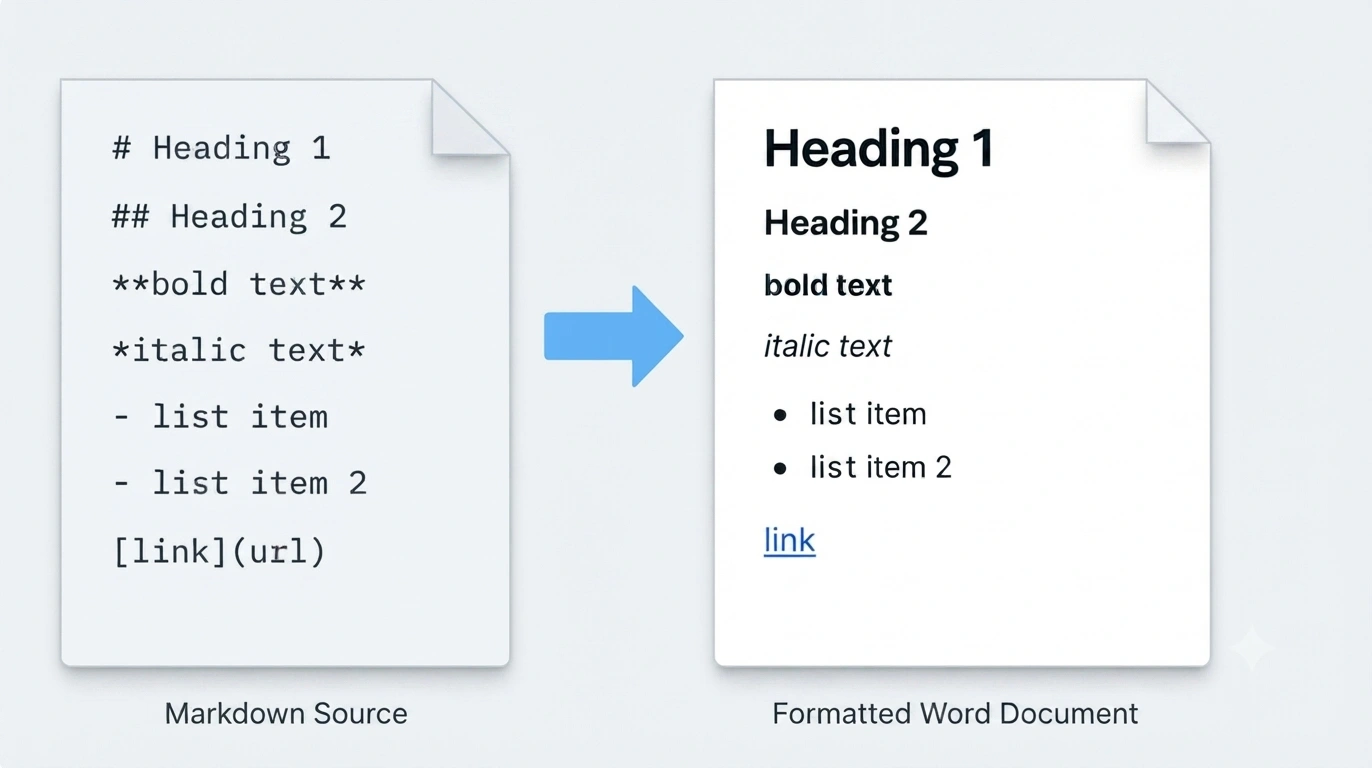
pandoc input.md -o output.docxYes. You get a standard, editable .docx file. It opens in Word, Google Docs and LibreOffice.
Yes. It's a normal Word document and nothing is locked. Headings use Word's built-in styles, so you can restyle the whole file from the Styles pane.
Word opens a .md file as plain text, so you see symbols such as # and ** instead of formatting. Convert it first, then open the .docx.
The converter downloads each image from the link in your Markdown, inside your browser. Only public PNG, JPG, JPEG, GIF and BMP images are embedded. If the link is private or broken, blocked by the image host, or points to a file on your computer, or the image is a WebP or SVG, it becomes a clickable "[Image]" link instead. Use a public PNG or JPG link and convert again.
Yes. Paste it into the box as it is. AI chat tools write in Markdown, so headings, lists and tables convert like any other Markdown. Check the preview before you download.
No. The conversion runs in your browser, and nothing is sent to or stored on MDConvertHub's servers.
Learn practical Markdown workflows, publishing tips, and conversion best practices.
Written by Trilok SinghLast updated: Category: Markdown Converters